



Create
How to create a new tournament and explanation of all available options.
The tournament creation page allows you to set up a new tournament with a wide range of configuration options. This page is accessible only to authenticated users.
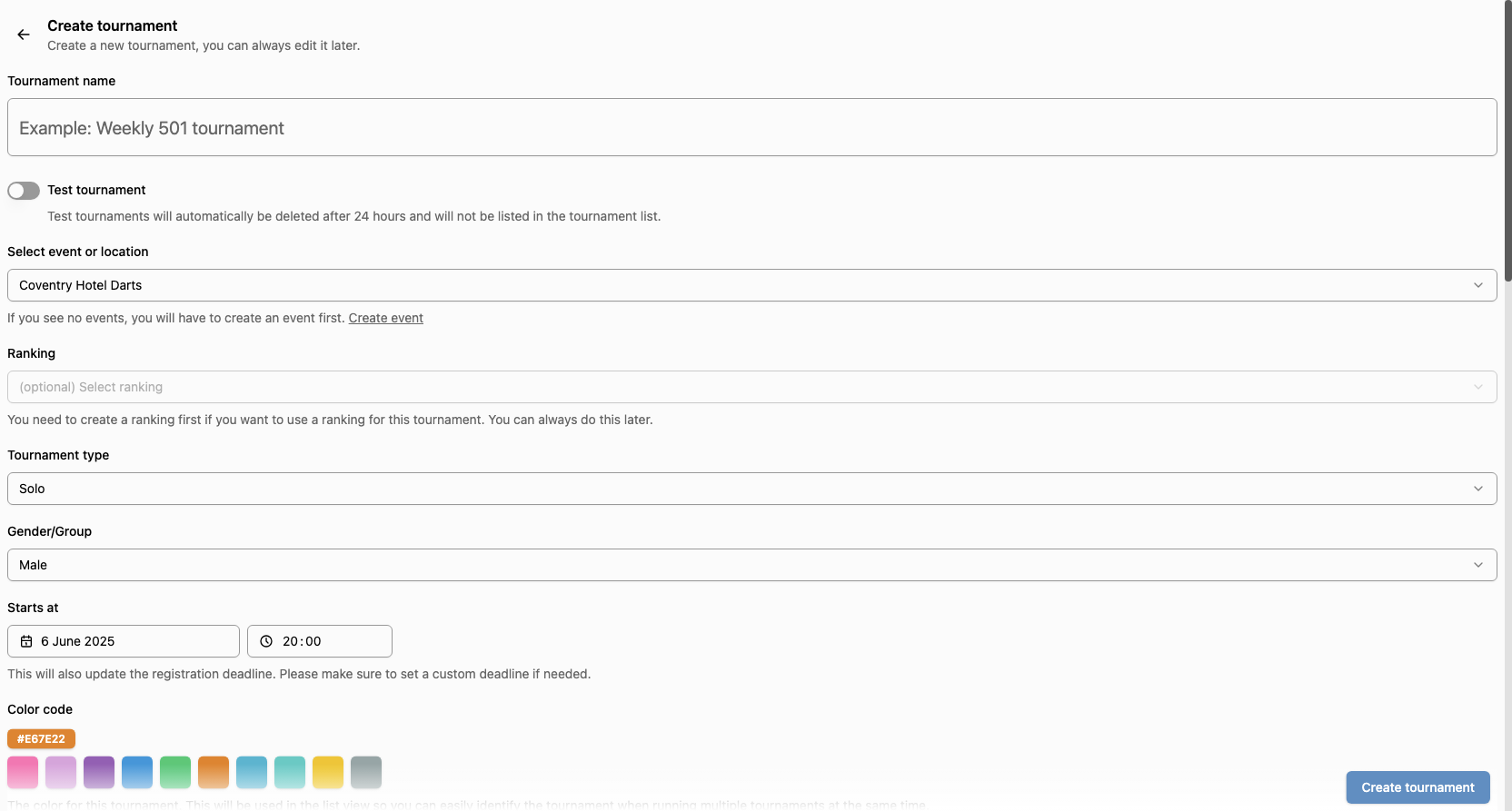
Below shows the basic fields required to create a tournament. Once the tournament is created, there will be more options available.
See the edit tournament page for more information on the various options available.
How to Create a Tournament
- Access the Create Tournament Page
- Navigate to the tournaments management section.
- Click the Create tournament button to open the creation form.
- Fill in the Tournament Details
- Complete the form fields as described below.
- Save the Tournament
- After filling in the details, click the save button. You will be redirected to the tournament management page upon successful creation.
Tournament Options & Settings
Basic Information
- Tournament name: The name of your tournament (e.g., "Weekly 501 tournament").
- Test tournament: If enabled, the tournament will be automatically deleted after 24 hours and will not appear in the public tournament list. Useful for testing setups.
Event & Ranking
- Select event or location: Choose the event or location where the tournament will take place. If no events are available, you must create one first.
- Ranking: (Optional) Link the tournament to a ranking list.
Tournament Type & Group
- Tournament type: Select the format solos or couples.
- Solos: A tournament where each player for themself.
- Couples: A tournament where players play in duo's.
- Gender/Group: Specify the gender or group for the tournament (e.g., male, female, other).
- Starts at: Set the start date and time for the tournament. This also updates the registration deadline by default.
- Color code: Choose a color for the tournament. This helps visually identify the tournament in lists, especially when running multiple tournaments simultaneously.
Currently couples have no dedicated registration function.
Development for this is ongoing and expected Q4 2025. Therefor we currently recommend managing registration manually by setting one player as first name, and one player as last name.
Progression & Structure
- Progression type: Choose how players progress through the tournament:
- Traditional: Standard knockout, 1st of a group vs. 2nd from another group.
- Traditional Fast: More byes at the start, allowing more matches to begin simultaneously.
- Advanced: (Beta) Tries to give as many 1sts a bye as possible; 2nds with a bye are matched against each other.
Not sure what to pick?
If you are new to organizing tournaments, we recommend starting with traditional. You can use the `Test tournament` function to compare the various setups
- Max players: Set the maximum number of players. Group phase is available for any number of players.
- There is no need to change this number before starting the tournament. DartsSpace will automatically reduce the number of players if you start with more.
- With group phase: Enable to play in groups before the knockout phase.
- Group counting type (if group phase enabled):
- Leg balance: Legs lost are subtracted from legs won (Wins → Legs balance → individual duel).
- Won legs: Primary sorting by legs won, then lost (Wins → Legs won → legs lost → individual duel). Usually results in fewer shootouts.
- Note: This setting cannot be changed after the tournament starts.
- With Consolation knockout: Enable to allow players who do not make it to the top from groups (or lose their first match in knockout) to play in a consolation bracket.
Registration & Listing
- Allow online registration: If enabled, participants can register online. If disabled, the tournament is private/closed (visible in the list but not open for registration).
- Registration deadline: Set the deadline for online registration. Defaults to 15 minutes before the tournament starts. Disabled if online registration is not allowed.
- Player display mode: Controls what information about players is shown in the tournament list:
- None: No player information is shown.
- Amount: Only the amount of players is shown.
- Names: Both the amount and names of players are shown.
- Price: Entry fee for the tournament. Leave empty if the tournament is free.
- Description: A description of the tournament, shown in the tournament list and on the tournament page.
Advanced
- Autoplay: If enabled, the system will automatically propose or start new matches based on the tournament's state. Disable if you want to manually control boards, writers, etc.
Tips
- Ensure all required fields are completed before saving.
- Use descriptive names and clear settings to make management easier.
- You can always edit the tournament later if you need to adjust settings.